
Fantas V2.6 Tutorial: Choose 2K Square or 4K Banner Imagery
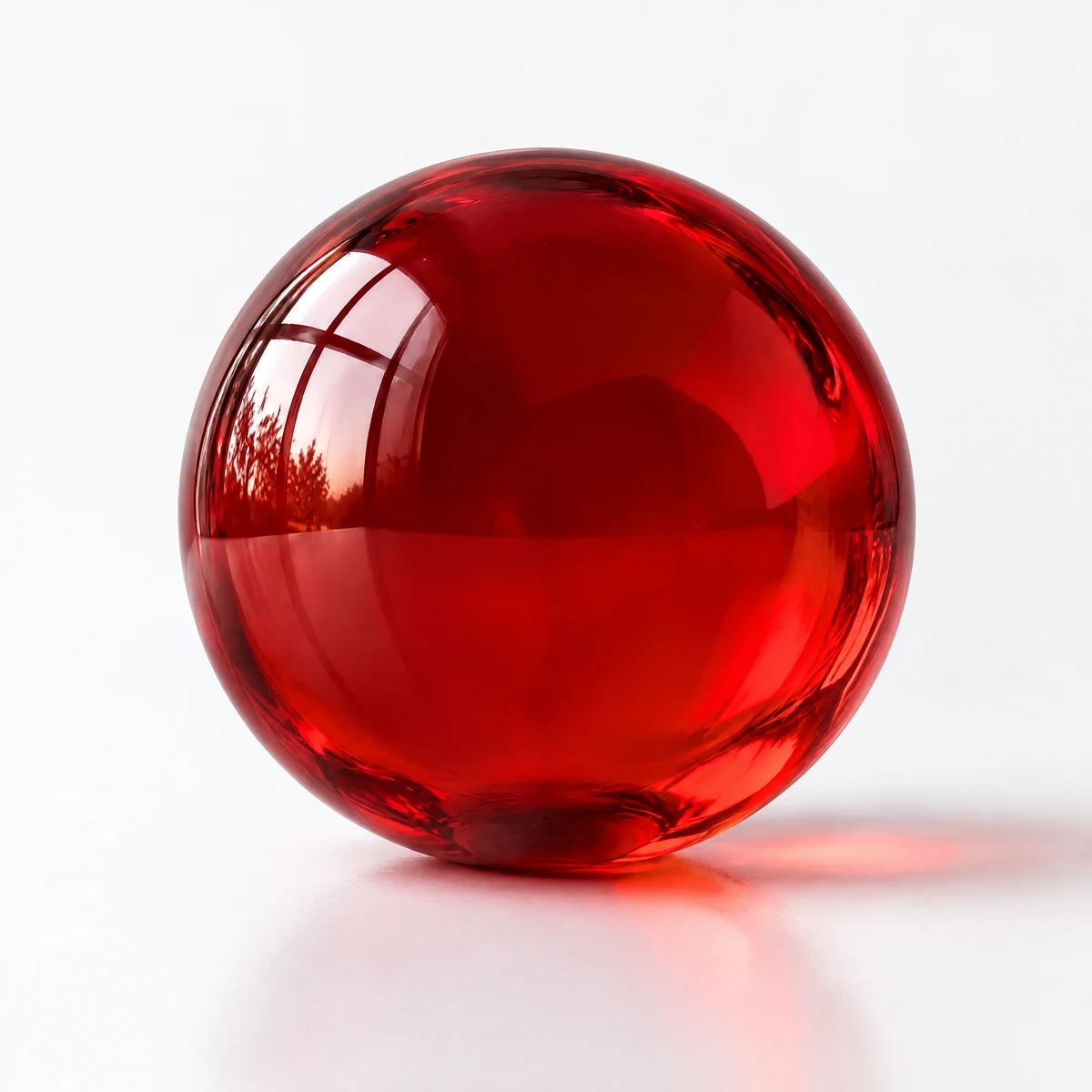
We used Fantas V2.6 in Canvas to make a 2048 × 2048 red glass sphere and a 3840 × 2160 yellow duck. Use the first to inspect light and shadows, then use the second to plan breathing room for a banner.
This opens a draft. Choose Fantas V2.6 in the workspace and add your own reference if needed.
Images from our AI Fantas Canvas tests
These are two separate Canvas generations with different subjects and aspect ratios. Match the prompt and aspect ratio before testing the effect of resolution.
2K square · Red glass sphere
· 1:1 · Original 2048 × 2048 · PNG
4K landscape · Yellow rubber duck
· 16:9 · Original 3840 × 2160 · PNG
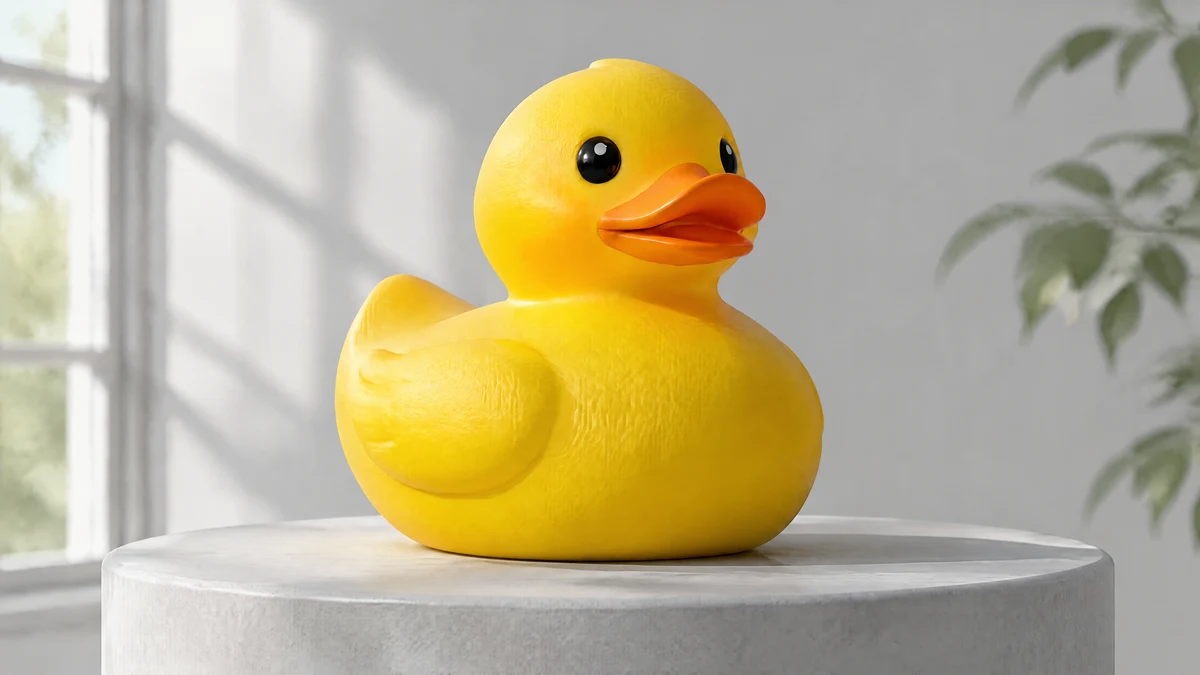
The images shown are resized copies of the original outputs. The listed dimensions are those of the original files. Read the AI Fantas Canvas guide
Make your first version
Prepare your references
- The intended output dimensions, and a clear product photo if the result will represent a physical item.
Steps in AI Fantas
- Open Canvas, add an image node and choose Fantas V2.6.
- Set the delivery ratio before choosing resolution. Start square for a product tile and match the slot for a banner.
- Use the sample prompt to draft the lighting. For a listing, connect a real product photo and specify details to preserve.
- Check highlights, edges and shadows before choosing the final size.
Open Studio Chat · Open Canvas · Read the help center
A prompt you can adapt
Replace bracketed placeholders with your real product information. Available reference counts, aspect ratios, resolutions and prices depend on the model selected in the workspace.
A white-background lighting draft for glass
Check the result before using it
- Check the highlight against the apparent direction of the window light.
- Inspect the image at its actual display size and verify the intended spacing.
- Preview the final crop and confirm that important product edges remain visible.
Choose the aspect ratio first
The 2K square fits the sphere, window reflection and refracted red light. The 4K landscape frame leaves room around the duck for the window and plant. Fit the layout to the placement before using a larger output.
Inspect materials before export
Check whether highlights follow the shape of the glass and whether the rubber makes clear contact with its stand. For a real product, add a photo reference and compare the colors, shape and packaging with the item.
If the first result needs work
If the layout needs more room for text, move the product in the layout prompt and check the crop before raising the output setting.