
Vidu Q4 Image-to-Video Tutorial: Add a Gentle Product Camera Move
We gave Vidu Q4 one square image of a banana on white and asked for a gentle camera move. The result is about three seconds long and keeps a square composition.
This opens a draft. Choose Vidu Q4 in the workspace and add your own reference if needed.
Our image-to-video test
One image-to-video test in AI Fantas used one reference, an automatic aspect ratio and a gentle camera move. The preview is silent.
Square reference and a roughly three-second clip
· One reference · Automatic aspect ratio · Returned 720 × 720
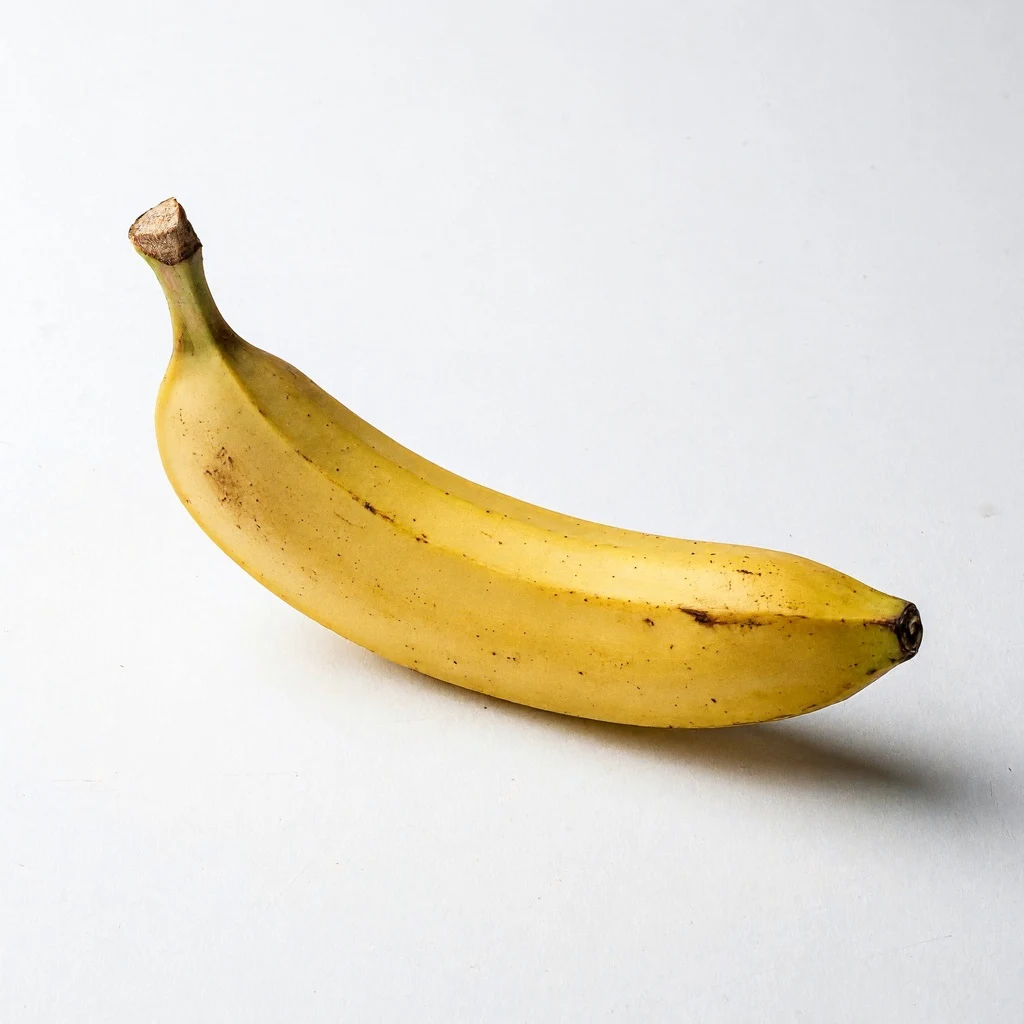
A single yellow banana on a white table. A gentle camera move, no speech, no text.
The videos are compressed previews. Dimensions refer to the original outputs. Vidu Q4 official documentation
Make your first version
Prepare your references
- One clear product image with room around the edges.
Steps in AI Fantas
- Open the product video workflow and select the Vidu Q4 image-to-video option.
- Upload the product image and choose the output ratio or automatic framing where offered.
- Describe one small camera move and tell the model to keep the product still. Start with a short clip.
- Pause at the beginning, middle and end to compare product shape and lighting with the source.
Open Studio Chat · Open Canvas · Read the help center
A prompt you can adapt
Replace bracketed placeholders with your real product information. Available reference counts, aspect ratios, resolutions and prices depend on the model selected in the workspace.
A slow push on a stationary product
Check the result before using it
- Look for changes in the outline, stem or packaging edges.
- Confirm that the last frame still shows the whole item and any important details.
- Check the contact shadow for flicker and watch for added background objects.
Prepare an image that can serve as the first frame
Our input was square with a visible contact shadow. The returned video was 720 × 720. Leave space around your product so the whole item can stay in frame during a push.
Look at the object as well as the camera move
Compare the curve, stem and shadow against the source. Check the final frame for unwanted cropping. If your item has packaging, pause and read the label before exporting.
If the first result needs work
If the item turns or warps, remove extra scene instructions and use a smaller single camera move with the object explicitly held still.