
Nano Banana 2.1 Tutorial for Product Photos with a Reference
We used the same prompt for two 2K banana images, one with an image reference and one from text. Compare the stem direction and tabletop in the actual results.
This opens a draft. Choose Nano Banana 2.1 in the workspace and add your own reference if needed.
AI Fantas test images and original prompts
Both AI Fantas tests used Nano Banana 2.1, a square frame and 2K. The reference job returned JPG and the text job returned PNG. Each setting was run once.
Result with one image reference
· 1:1 · 2048 × 2048 · JPG
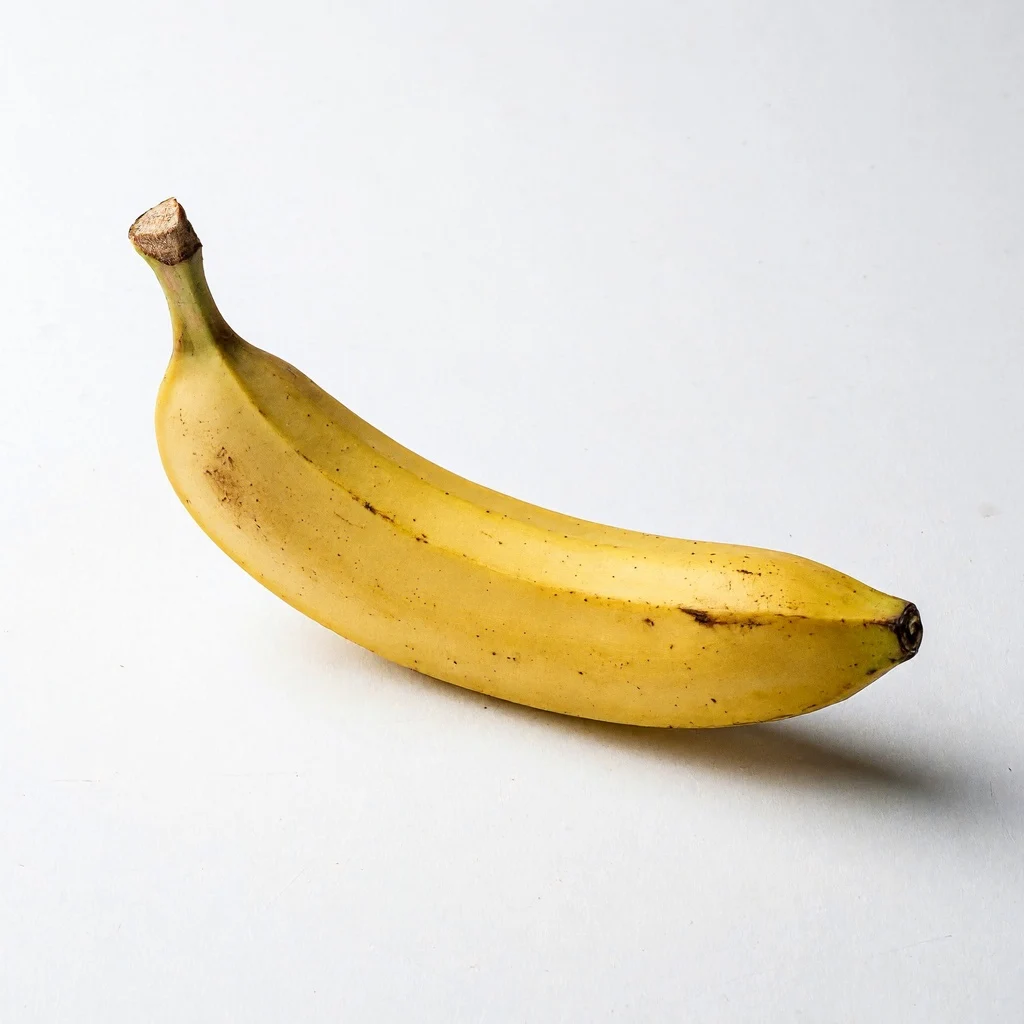
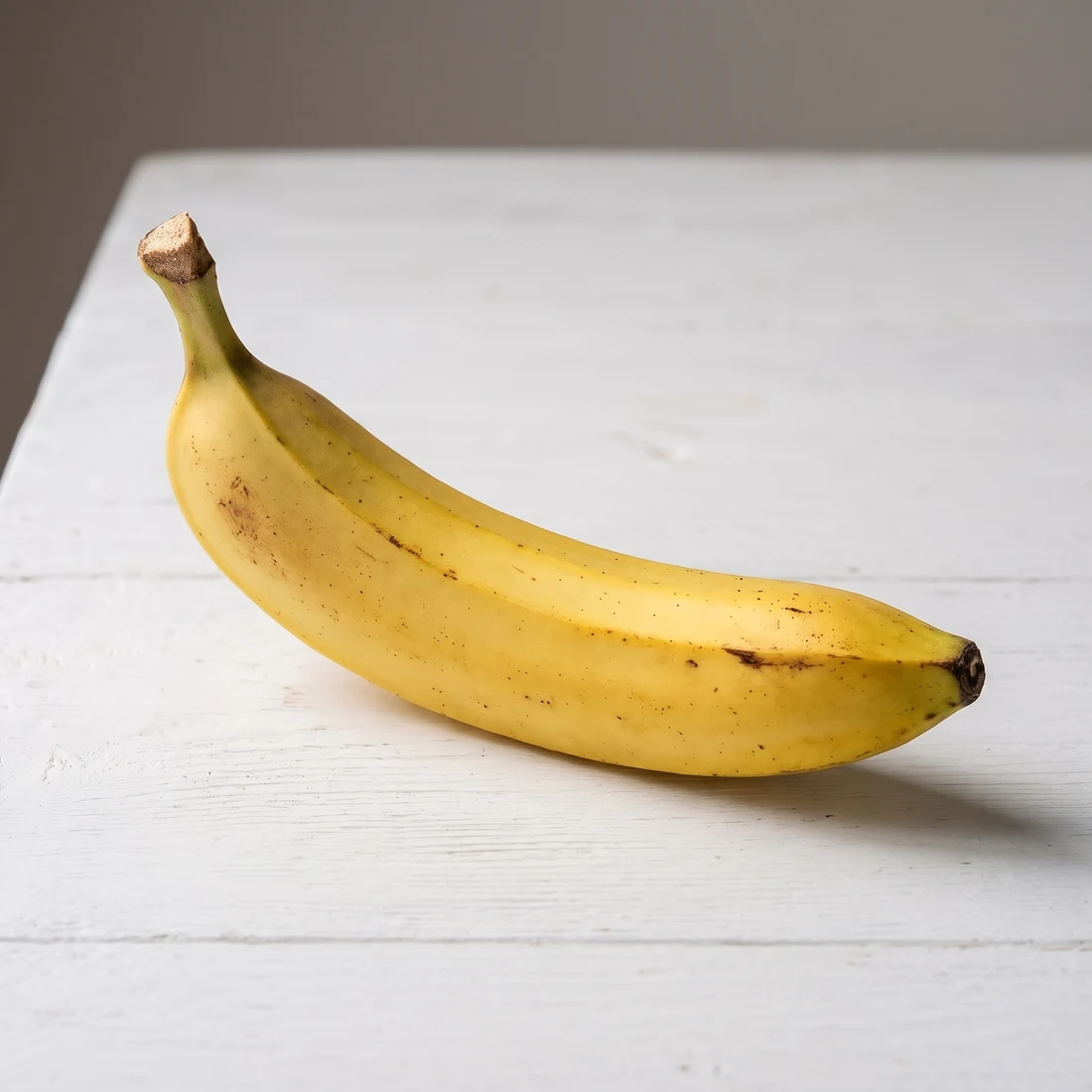
A studio product photograph of one yellow banana on a white table, soft natural daylight, no text.
Text-only result
· 1:1 · 2048 × 2048 · PNG
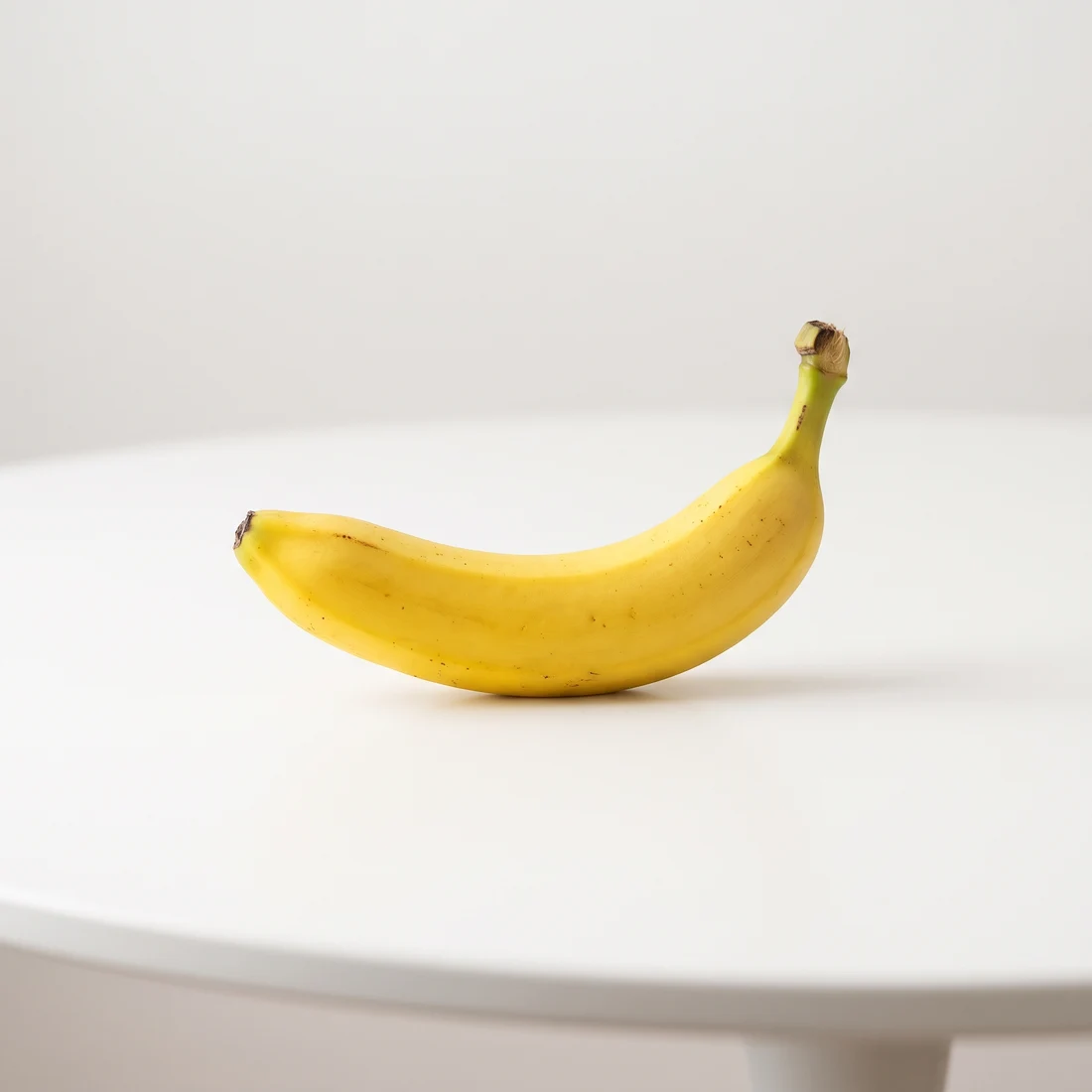
A studio product photograph of one yellow banana on a white table, soft natural daylight, no text.
The images shown are resized copies of the original outputs. The listed dimensions are those of the original files. KIE documentation for Nano Banana 2.1
Make your first version
Prepare your references
- One clear product photo and a list of details that must be preserved.
Steps in AI Fantas
- Open the product photography workflow and select Nano Banana 2.1 with a square crop.
- Attach your product image and name its orientation and identifying details.
- Change one part of the setting and generate one candidate. For a comparison, match the export format as well.
- Inspect the source, result and physical item side by side before export.
Open Studio Chat · Open Canvas · Read the help center
A prompt you can adapt
Replace bracketed placeholders with your real product information. Available reference counts, aspect ratios, resolutions and prices depend on the model selected in the workspace.
Change a tabletop while preserving product orientation
Check the result before using it
- Verify that the orientation and identifying details match the product.
- Check the background texture and look for unintended changes around the edges.
- Confirm the dimensions, aspect ratio and actual file format after export.
What the reference changed in this sample
The reference result kept the stem on the left and the tip on the right, while adding a textured tabletop. The text-only result has the stem on the right and a different tabletop. Compare these details whenever the output represents a real item.
Check dimensions and file format separately
The two files are both 2048 × 2048 and have different formats. Match format, aspect ratio and prompt before isolating the effect of a reference input.
If the first result needs work
If the item flips or changes identity, make the original orientation explicit and limit the edit to the background or table.