
Kling 4.0 Reference Video Tutorial: Standard and Flash Samples
We made a Kling 4.0 shot from a banana reference and a Kling 4.0 Flash shot from text. Both are roughly three seconds at 720p in landscape, with two different approaches to setting the subject.
This opens a draft. Choose Kling 4.0 in the workspace and add your own reference if needed.
Two original Kling 4.0 and Flash tests
The tests used different prompts and reference inputs. Inspect the outputs in context. For a speed or quality comparison, keep those inputs and settings fixed. Both previews are silent.
Kling 4.0 · Object image reference
· One reference · 16:9 · About 3 seconds · Original 720p
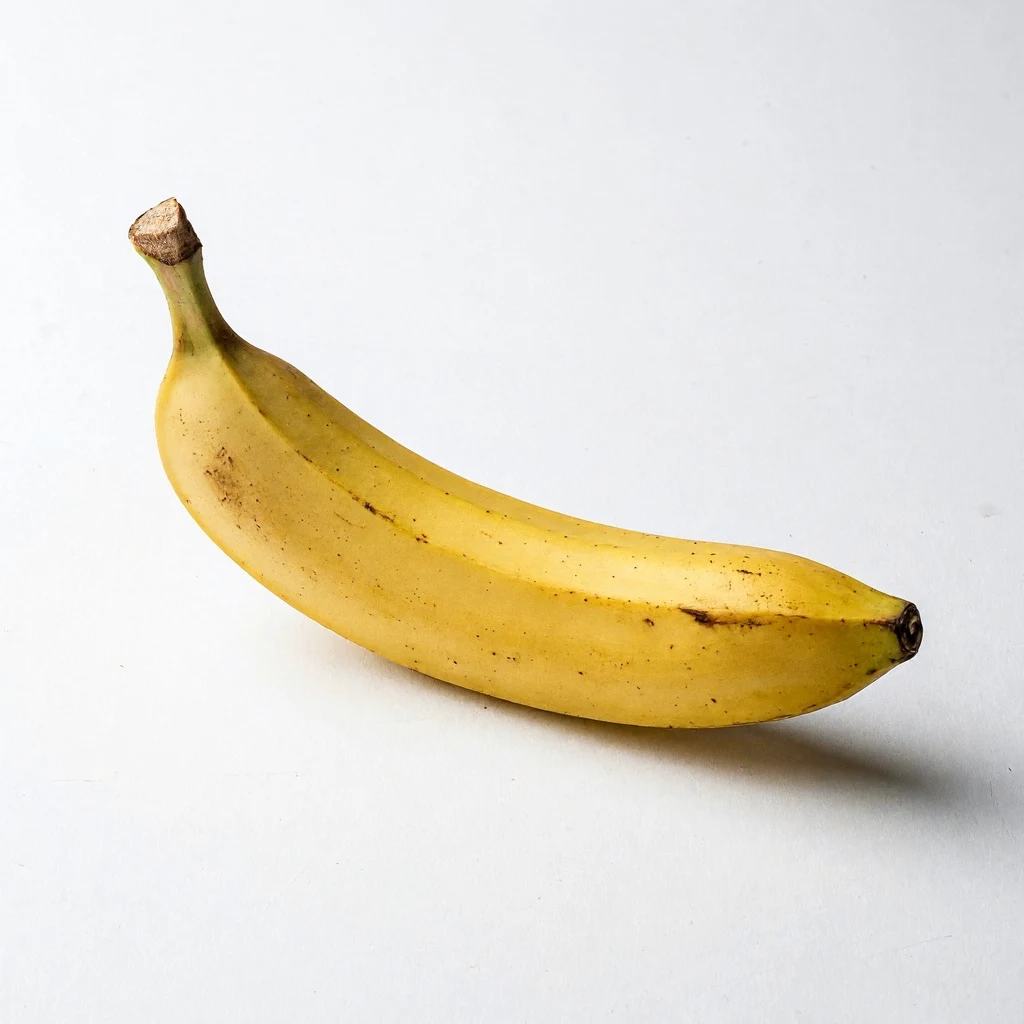
Use @image_1 as the object reference. A single yellow banana resting on a white tabletop. Slow gentle camera movement. No speech, no text.
Kling 4.0 Flash · Text-only input
· No image reference · 16:9 · About 3 seconds · Original 720p
A single yellow banana on a white table. A gentle camera move, no speech, no text.
The videos are compressed previews. Dimensions refer to the original outputs. KIE documentation for the Kling 4.0 Flash route
Make your first version
Prepare your references
- One clear product image and a specific direction for the camera move.
Steps in AI Fantas
- Open the product video workflow and choose Kling 4.0.
- Attach the product image in a supported reference mode and check that it appears in the task input.
- Describe one camera move and name the features of the item that need to stay in place.
- Compare key frames with the source before trying new motion or aspect ratios.
Open Studio Chat · Open Canvas · Read the help center
A prompt you can adapt
Replace bracketed placeholders with your real product information. Available reference counts, aspect ratios, resolutions and prices depend on the model selected in the workspace.
A small lateral move guided by a product reference
Check the result before using it
- Confirm that the correct image appears as a task reference.
- Compare the first and last frames for shape, clearance and shadow.
- Inspect the product outline and background perspective during the camera move.
Tell the model how to use the reference
The Kling 4.0 task used the banana image as an object reference. The landscape output kept a single item, with different framing, shadow and table edges. Choose the reference mode for the job, then say whether the input represents the item or the opening frame.
Use text-only output to try a composition
The Flash output also shows one banana, with different framing, stem angle and shadow. Text-only generation can help frame a shot. For a real product, attach a reference and inspect identifying details frame by frame.
If the first result needs work
If the item drifts, verify the attached media and describe a smaller move with a fixed subject. Check the final crop before a longer render.