
Gemini Omni 1.1 Flash Ext Tutorial · Adding camera movement and warm light from a still reference
The returned clip is about 4.03 seconds at 640 × 360. The banana retains its yellow color and curved profile. The tabletop gets warmer and the subject grows as the camera pushes in. Compare the reference with a middle frame to judge color drift.
This opens a draft. Choose Gemini Omni 1.1 Flash Ext in the workspace and add your own reference if needed.
Test media and settings
This AI Fantas test used APIMart Gemini Omni 1.1 Flash Ext at 360p with a single still as visual reference.
AI Fantas test
· Requested 360p · 640 × 360 · 1 image references · Requested ratio 16:9 · About 4.03 seconds · 0 video references · Silent preview
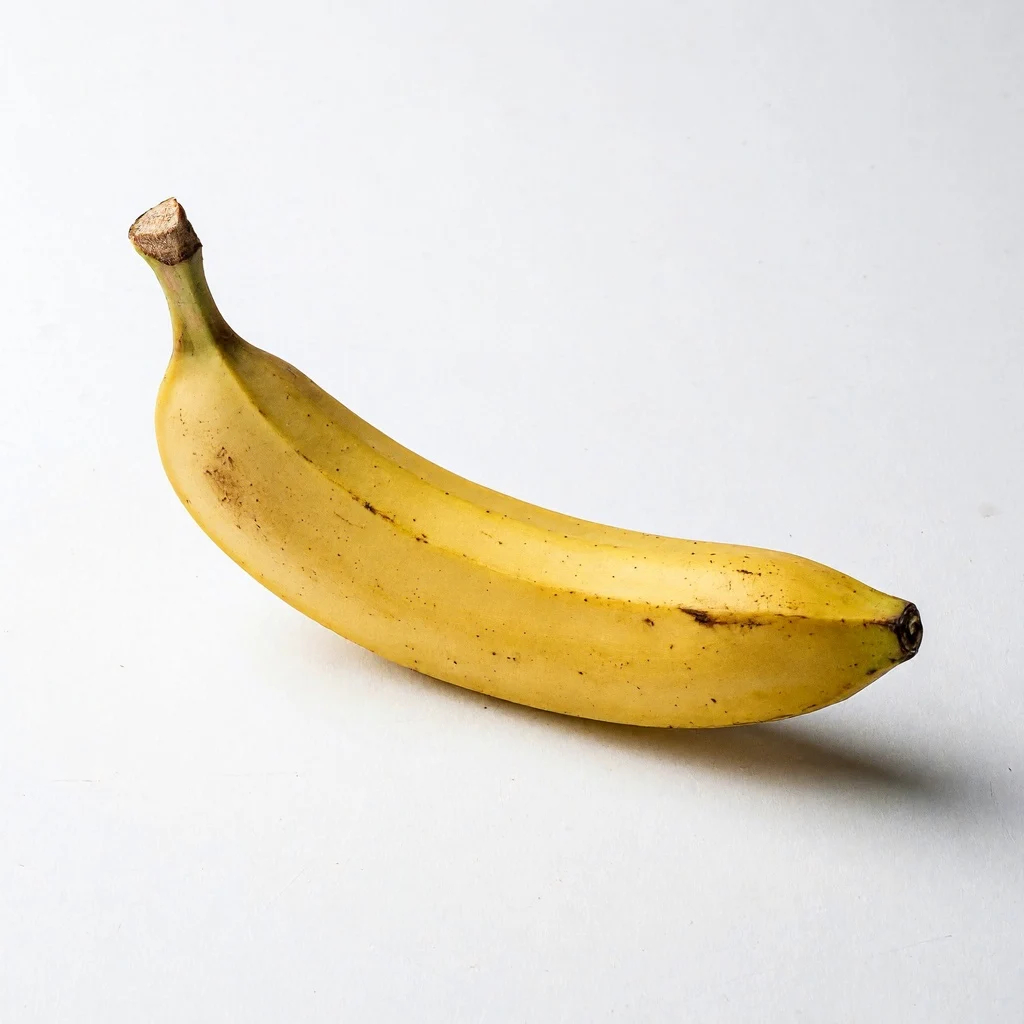
Use the supplied banana still as a visual reference. Keep the banana yellow and stationary on the table with slightly warmer light. One gentle camera push-in. No people, cuts, writing, or new sound.
The videos are compressed previews. Dimensions refer to the original outputs. See the workflow on AI Fantas
Make your first version
Prepare your references
- Prepare the image or clip described in the prompt and check its usage rights.
Steps in AI Fantas
- Open the node canvas workflow, switch to video mode and choose Gemini Omni 1.1 Flash Ext.
- If your exercise uses a reference, add your own input in a mode that supports it.
- Apply the prompt, set a supported aspect ratio and duration, and check the quote before generating.
- Inspect the first, middle and last frames against the checks below.
Open Studio Chat · Open Canvas · Read the help center
A prompt you can adapt
Replace bracketed placeholders with your real product information. Available reference counts, aspect ratios, resolutions and prices depend on the model selected in the workspace.
Adding camera movement and warm light from a still reference
Check the result before using it
- Compare the reference with a middle frame. Verify product color and safe framing during the push-in.
- Confirm the selected model, input and aspect ratio.
- Inspect the first, middle and final frames before exporting the clip.
Review the output
Compare the reference with a middle frame. Verify product color and safe framing during the push-in.
If the first result needs work
If the intended edit moves too far from the input, reduce the request to one change and compare with the source at the final display size.