
Seedream 5.5 Tutorial: Recolor One Element and Check the Layout
We asked Seedream 5.5 to turn a red circle green in a test image with a headline and two colored shapes. Inspect the before and after to check both the recolor and the positions of the parts we asked it to keep.
This opens a draft. Choose Seedream 5.5 in the workspace and add your own reference if needed.
AI Fantas test images and original prompts
AI Fantas ran the two tests on the KIE Seedream 5.5 image-editing route. Seedream 5.5 is available in the workspace. Check the current route, options and quote when repeating the exercise.
Recolor test for a red circle
· One reference · 1:1 · 1024 × 1024
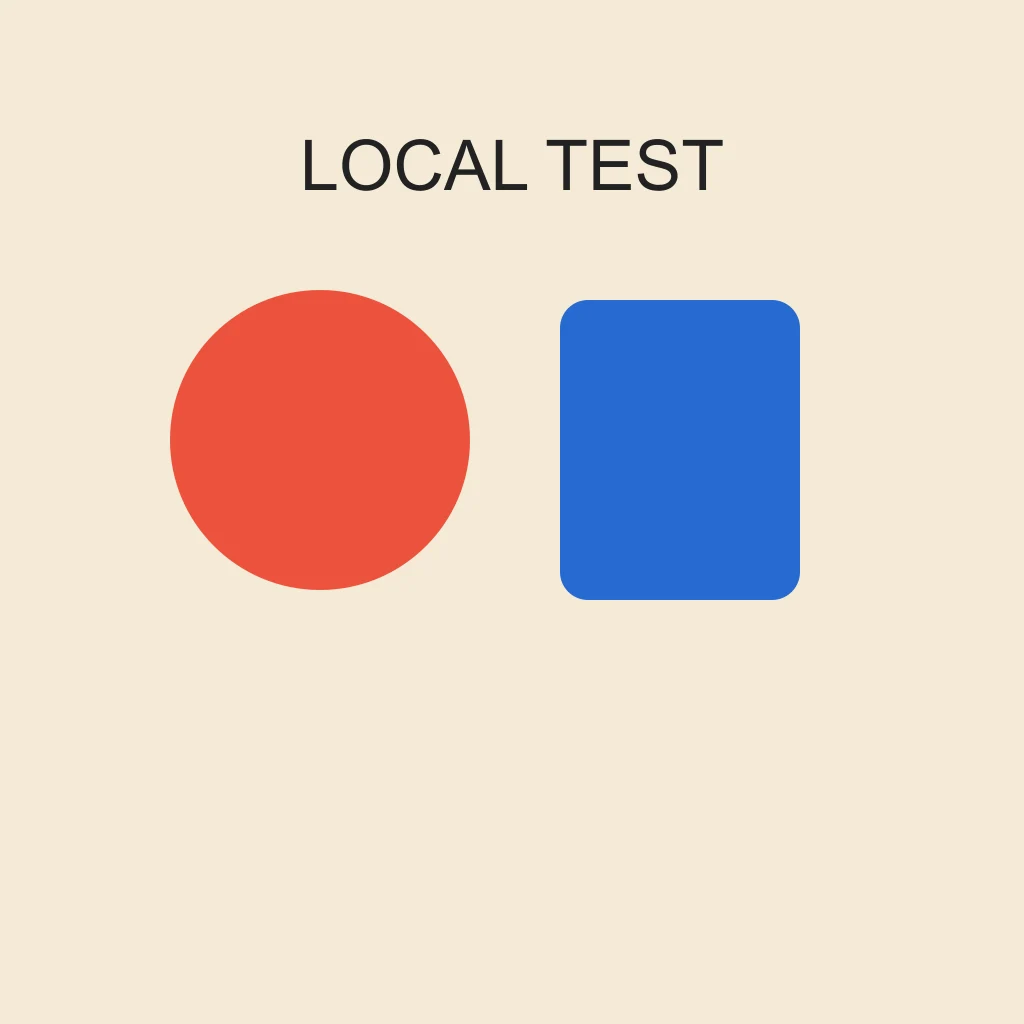
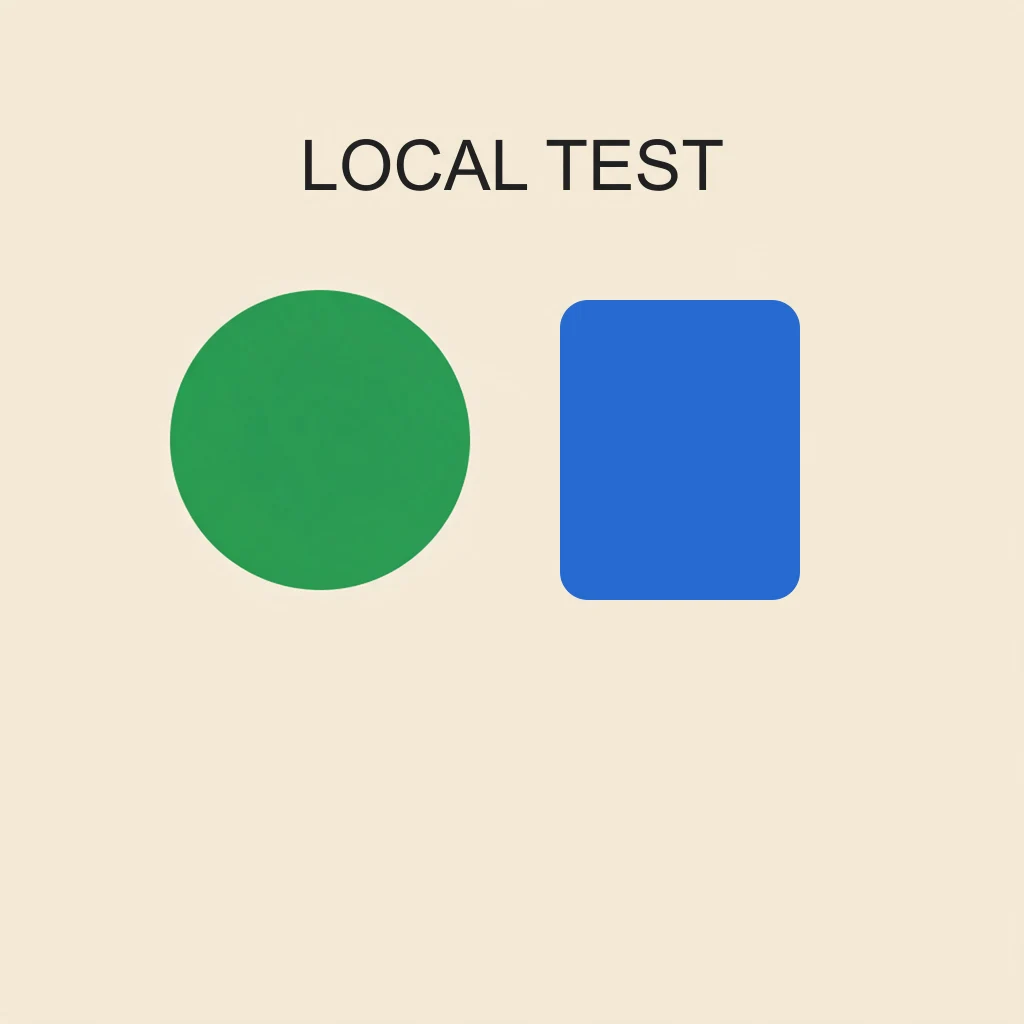
Change the red circle to a green circle. Keep the blue rectangle, background and text unchanged.
Layout test from a square input to a 4:3 poster
· One reference · 2K · 2368 × 1776
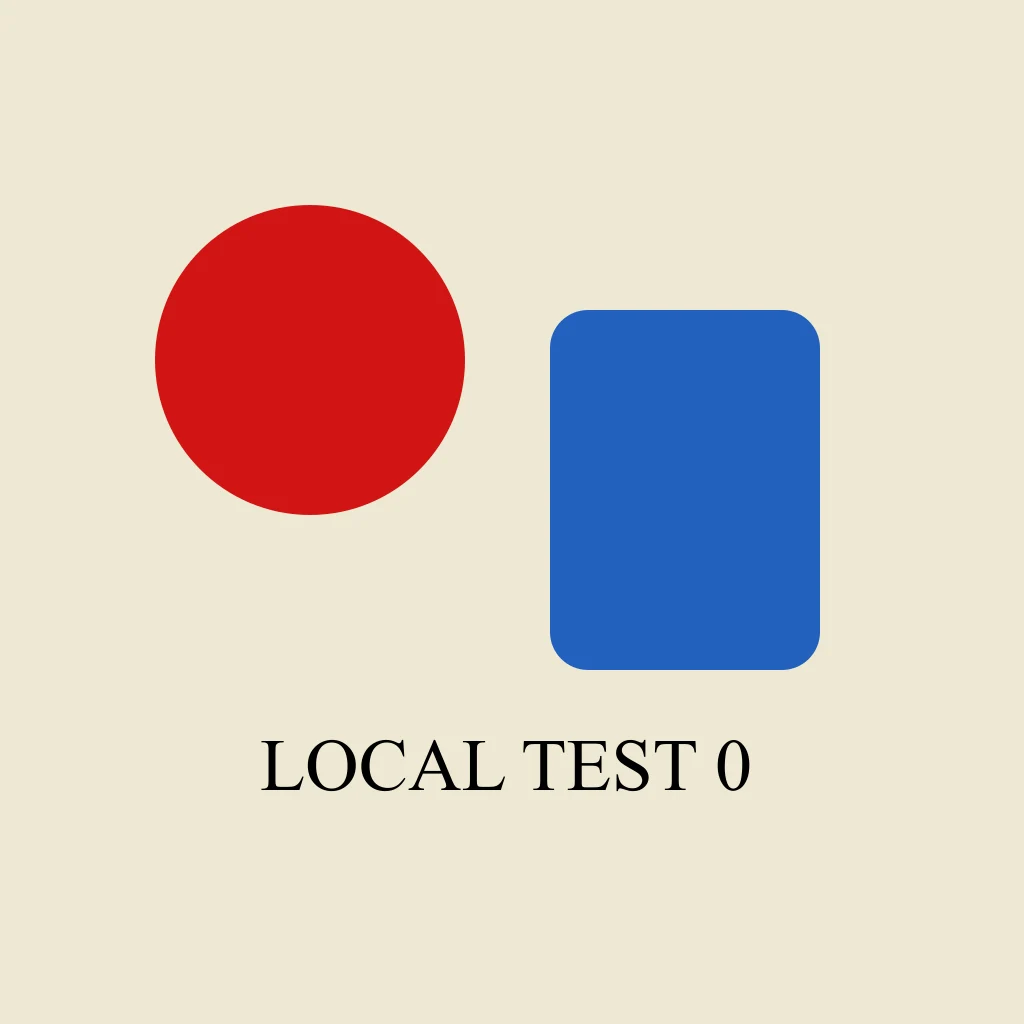
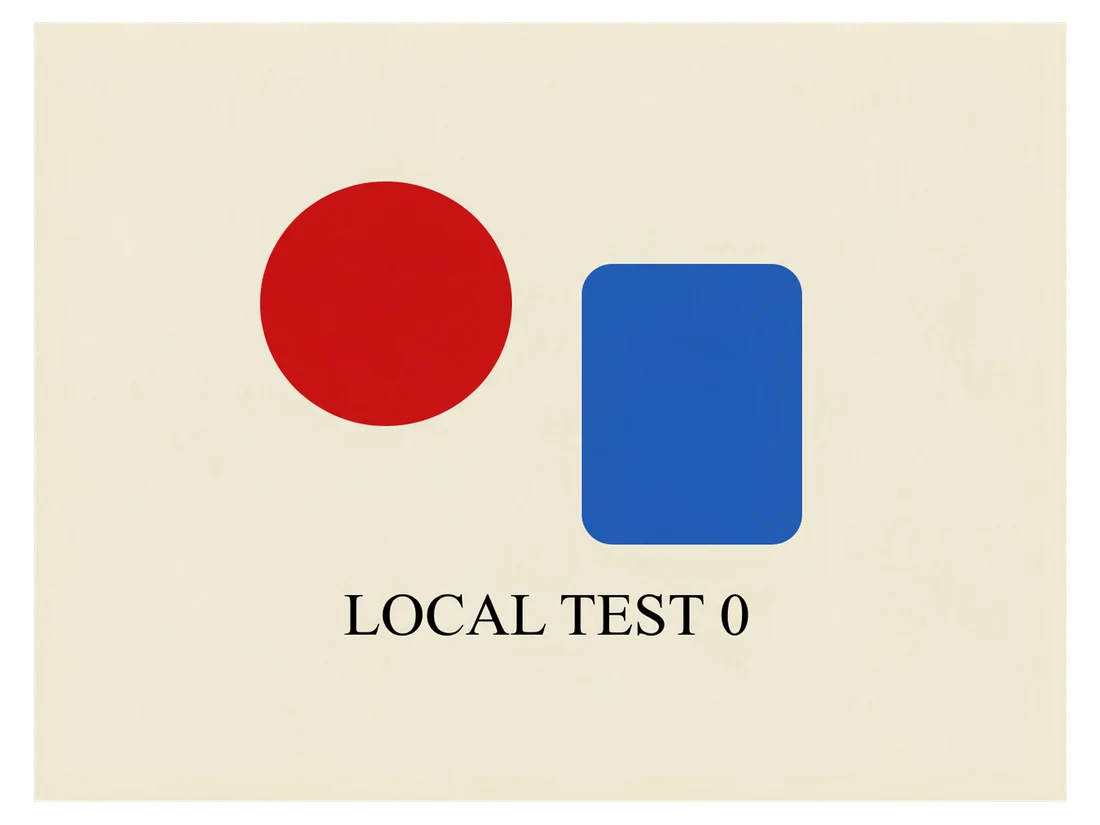
Create a clean poster with the reference shapes, preserving their distinct colors.
The images shown are resized copies of the original outputs. The listed dimensions are those of the original files. Seedream 5.5 official documentation
Make your first version
Prepare your references
- One image to edit, the position and target color of the object, and a list of elements to preserve.
Steps in AI Fantas
- Open image mode in Studio Chat, choose Seedream 5.5 and upload one reference.
- Match the original aspect ratio. Name the target by position and color and list what should stay in place.
- Align the input and result. Inspect both the edited region and the untouched parts before making another change.
- For exact brand color or text positioning, finish with a color picker or composite the original text in your editor.
Open Studio Chat · Open Canvas · Read the help center
A prompt you can adapt
Replace bracketed placeholders with your real product information. Available reference counts, aspect ratios, resolutions and prices depend on the model selected in the workspace.
Change the color of one element
Check the result before using it
- Check the target color and confirm that the edited element kept its size and position.
- Align the reference and result to inspect lettering, background and adjacent objects.
- Zoom in before export to check for color spill and unexpected borders.
What changed in our recolor test?
The circle turned green, and the blue rectangle and LOCAL TEST heading were still recognizable. Side by side, the heading and shapes also shift slightly. On a package edit, check whether the label moves or the cap picks up the new color.
Change the aspect ratio in a separate pass
Our second test used a square reference to make a 4:3 poster. It retained the red circle, blue shape and headline wording and added a black border. Preserving a layout is easier to verify if you match the source ratio and change one item first.
If the first result needs work
If the model moves the label or changes nearby colors, tighten the edit instruction and compare overlays. Keep the approved source for any detail that must match exactly.