
Nano Banana 2 Poster Tutorial: Layout, Standard, and Lite
We made a 1024 × 1024 geometric poster with Nano Banana 2 and a separate still life with Lite. Inspect the poster’s typography, shapes and spacing before you use the approach for a product page.
This opens a draft. Choose Nano Banana 2 in the workspace and add your own reference if needed.
AI Fantas test images and original prompts
AI Fantas tested different prompts with the two versions, both without image references. These outputs show two ways to practice. For a head-to-head test, match the inputs and settings.
Geometric poster from Nano Banana 2 Standard
· 1:1 · 1024 × 1024 · No image reference
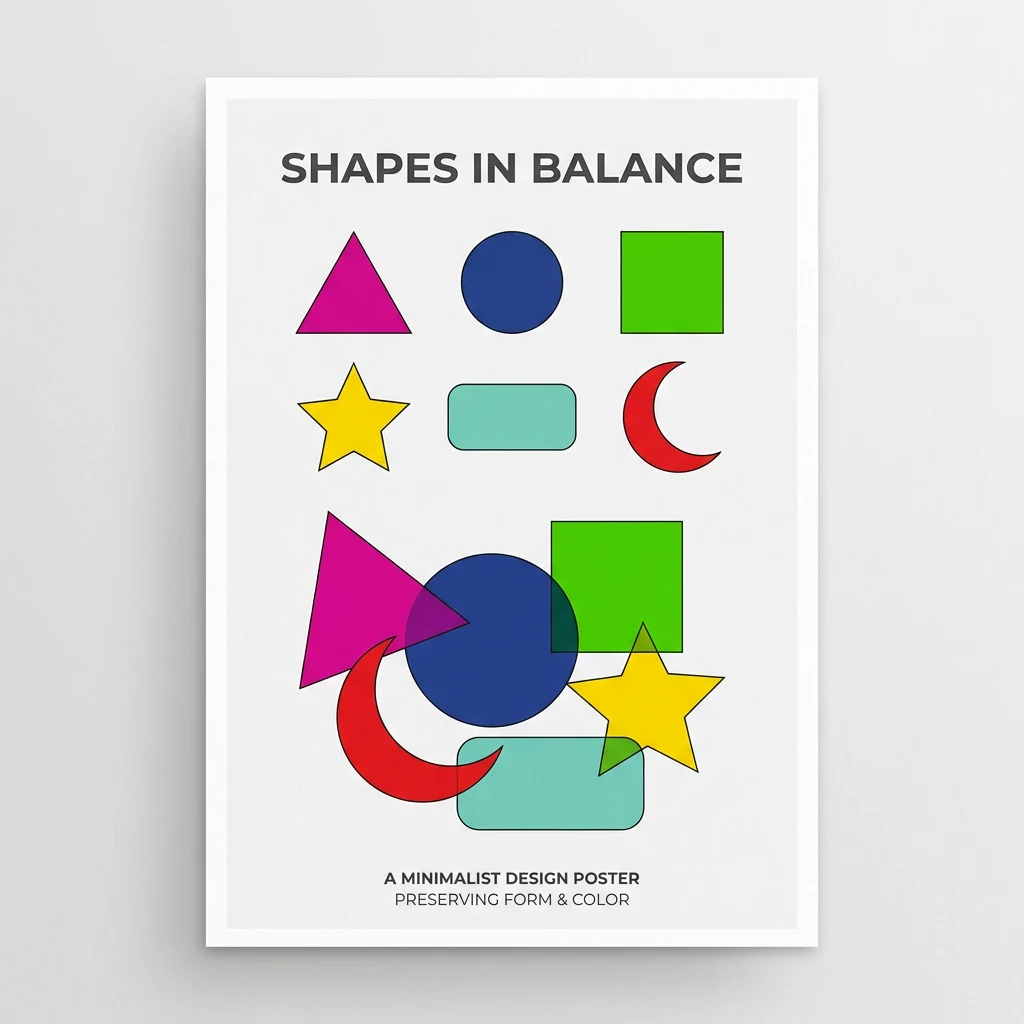
Create a clean poster with the reference shapes, preserving their distinct colors.
Window-lit still life from Nano Banana 2 Lite
· 1:1 · 1024 × 1024 · JPG · No image reference
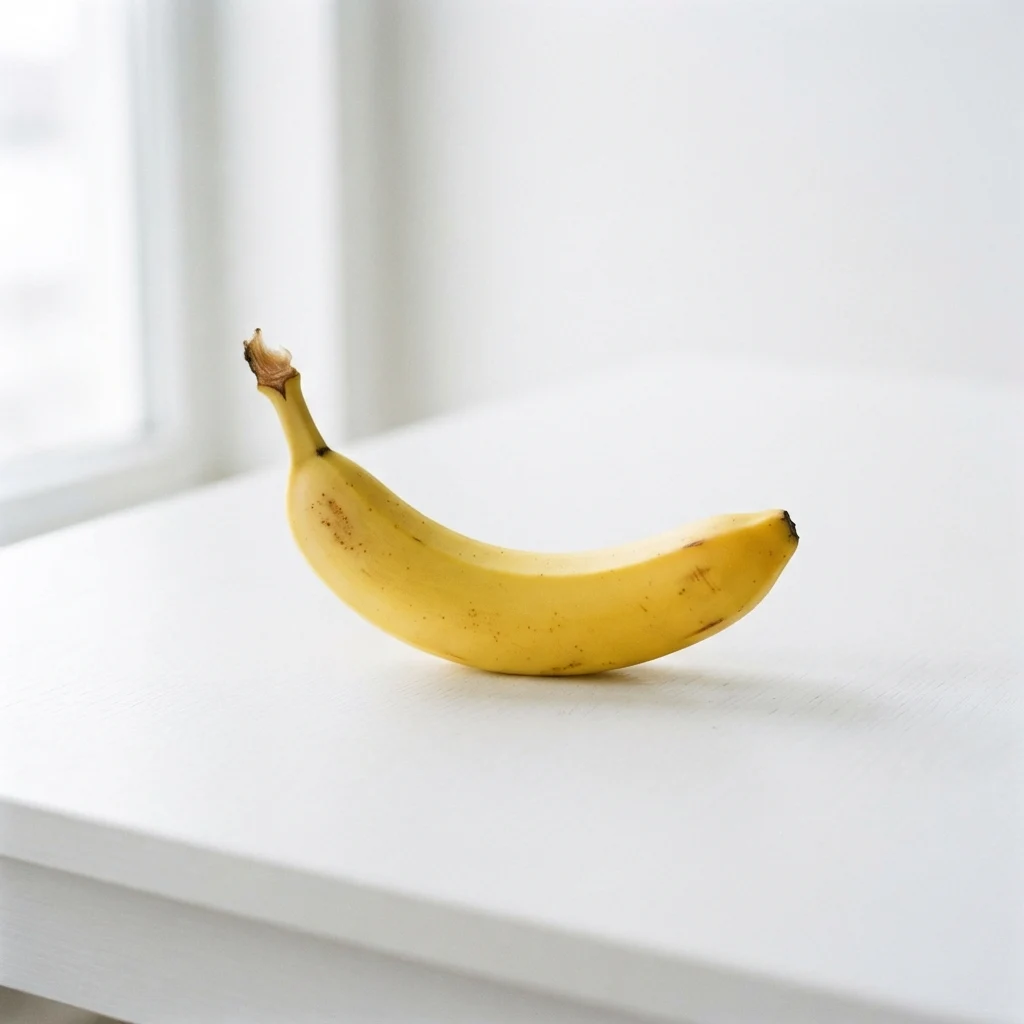
A studio product photograph of one yellow banana on a white table, soft natural daylight, no text.
The images shown are resized copies of the original outputs. The listed dimensions are those of the original files. Nano Banana 2 official documentation
Make your first version
Prepare your references
- One approved headline, one focal point and the target dimensions. For a product page, prepare a clear product photo.
Steps in AI Fantas
- Open the product detail page workflow, switch to image mode and select Nano Banana 2 Standard.
- Start with one square layout. Describe each shape, color and position that must appear.
- When the layout works, replace the geometric subject with your product and attach the real product photo if needed.
- Check the headline, specifications and pricing. Typeset any wording that must be exact in your editor.
Open Studio Chat · Open Canvas · Read the help center
A prompt you can adapt
Replace bracketed placeholders with your real product information. Available reference counts, aspect ratios, resolutions and prices depend on the model selected in the workspace.
Three-color geometric poster layout
Check the result before using it
- Check that the focal point and title space remain clear at phone size.
- Verify the number, position and colors of shapes.
- Proofread the copy against the approved text and remove unintended footer lettering.
Tell the model what belongs in the layout
The Standard result arranged circles, triangles, rectangles and other shapes within a poster, adding a headline and small footer text. The original prompt mentioned reference shapes without attaching an image or naming the shape count. Specify the shapes directly and reserve space if you want to typeset your own copy.
Choose the version for your target size
The Lite still life was a 1024 × 1024 JPG. It makes a practical size for an early draft. For a 2K or 4K deliverable, select a Standard configuration with that setting in the workspace. Use the same reference, prompt and aspect ratio if you want to compare the versions.
If the first result needs work
If the layout adds extra elements or lettering, narrow the prompt to one composition and explicitly name the zones that should stay blank.