
Flux 3 Image Tutorial · Use negative space in a single-product image
The returned image is 1184 × 880. The banana has a complete stem, soft top-left light and a visible contact shadow. It still uses much of the width. Ask for a smaller subject and more margin if the same image must support several crops.
This opens a draft. Choose Flux 3 Image in the workspace and add your own reference if needed.
Test media and settings
This AI Fantas test requested the APIMart flux-3-image route with text and a 4:3 frame.
AI Fantas test
· Requested 1K · 1184 × 880 · 0 image references · Requested ratio 4:3
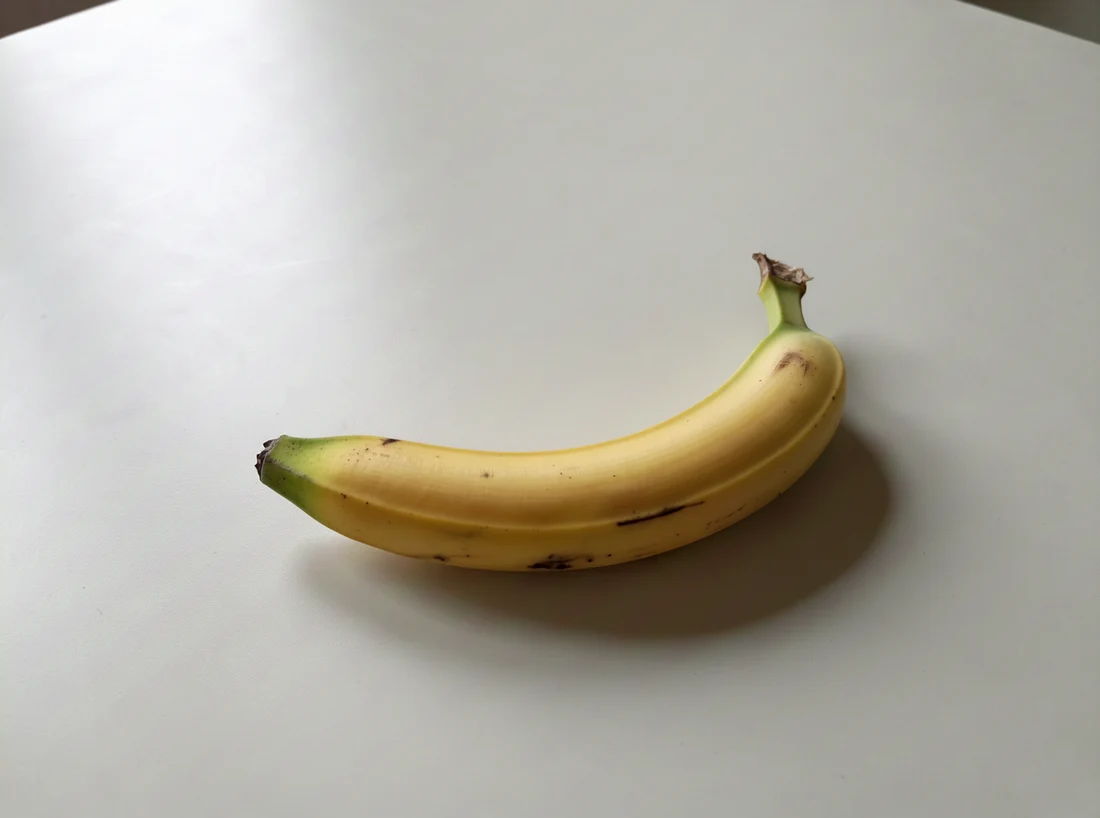
Put one yellow banana just below center on a pale tabletop in window light. Keep its stem, curve and contact shadow visible with balanced clearance left, right and above. Landscape, no lettering.
The images shown are resized copies of the original outputs. The listed dimensions are those of the original files. See the workflow on AI Fantas
Make your first version
Prepare your references
- Set the delivery aspect ratio and crop requirements, then start with a text prompt.
Steps in AI Fantas
- Open the product photography workflow, switch to image mode and choose Flux 3 Image.
- Choose your delivery crop. Attach your own image if your exercise requires a reference.
- Generate one candidate from the practice prompt. Inspect the subject, lighting or layout.
- Preview the intended crop, then verify the exported dimensions and format.
Open Studio Chat · Open Canvas · Read the help center
A prompt you can adapt
Replace bracketed placeholders with your real product information. Available reference counts, aspect ratios, resolutions and prices depend on the model selected in the workspace.
Use negative space in a single-product image
Check the result before using it
- Preview the delivery crop and check whether the cast shadow intrudes into the reserved space.
- Verify that the subject stays visible at the delivery crop.
- Compare with the real item or approved source before finalizing.
Review the output
Preview the delivery crop and check whether the cast shadow intrudes into the reserved space.
If the first result needs work
If the intended edit moves too far from the input, reduce the request to one change and compare with the source at the final display size.